How to Self-Host n8n on a VPS with Coolify

How to Self-Host N8N on a VPS Using Coolify: A Step-by-Step Guide
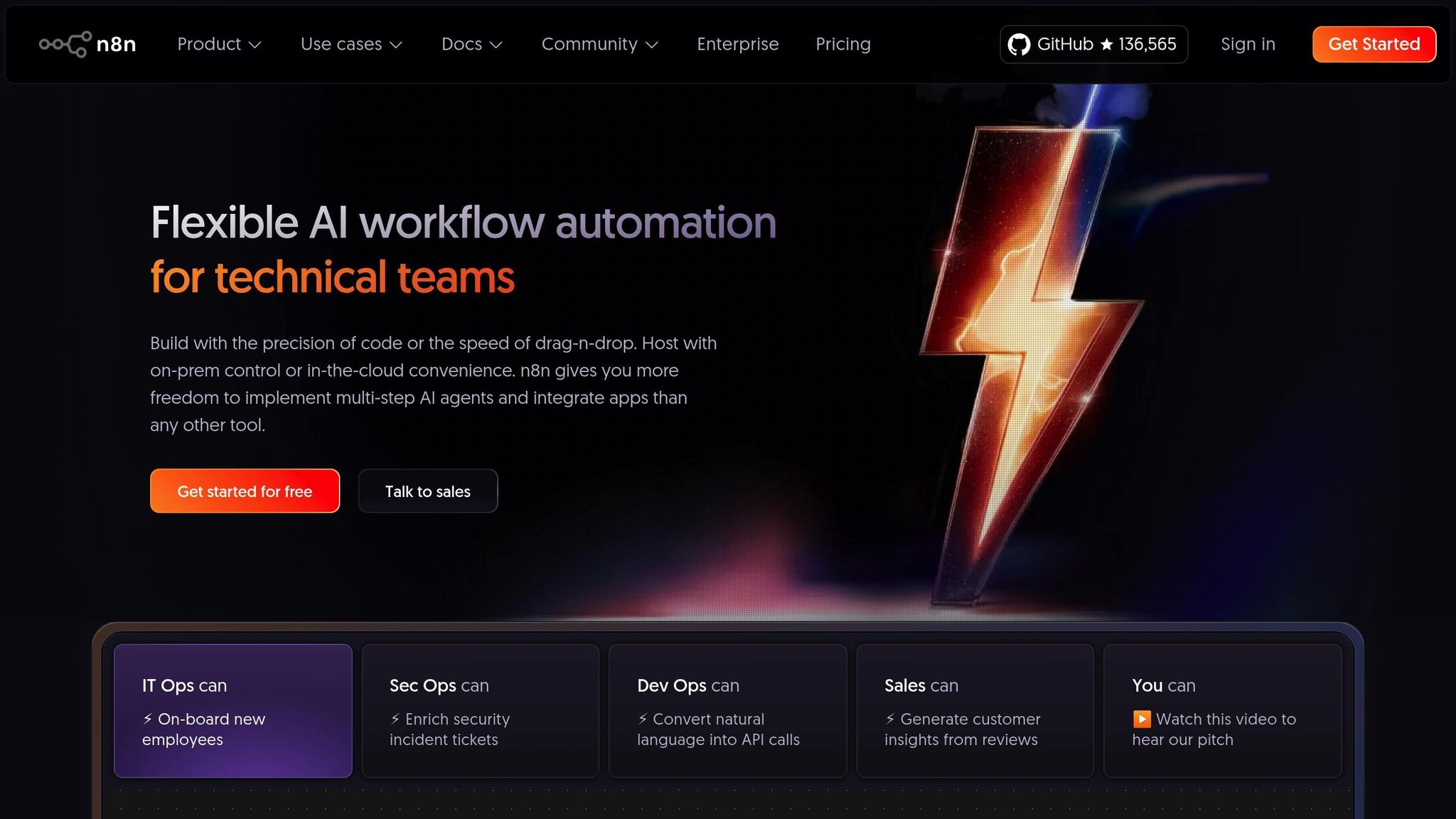
For businesses and developers looking for powerful and cost-effective workflow automation, N8N has become a popular tool. Pairing N8N with the flexibility of self-hosting on a Virtual Private Server (VPS) through Coolify creates a scalable and customizable solution. In this guide, we’ll walk you through the entire process of hosting N8N on a VPS, setting up a custom domain, and transferring workflows from a local instance – all without needing to start from scratch.
Why Choose N8N and Coolify?
N8N is an open-source workflow automation tool that allows users to connect apps, systems, and APIs seamlessly. Hosting it on a VPS offers enhanced control, performance, and security. Coolify is a self-hosting platform that simplifies deploying multiple applications, including N8N, directly on a VPS. Together, they provide a streamlined and versatile solution for deploying and managing workflows at scale.
Prerequisites for Self-Hosting
Before diving into the setup, ensure you have the following:
- A VPS Provider: Choose a reliable VPS provider, such as Hostinger, that supports Coolify and offers sufficient resources for your project.
- A Custom Domain: If you wish to use a custom domain (recommended for secure and professional deployments), ensure it’s already registered.
- Basic Knowledge of Hosting and DNS Management: Familiarity with setting DNS records and managing server configurations will be helpful.
Step 1: Setting Up a VPS with Coolify
- Choose a VPS Plan: Select a VPS plan based on your resource needs. For light to moderate workflows, a mid-tier plan (e.g., 2 CPUs, 4GB RAM) should suffice.
- Activate Coolify Template: During the server setup, choose the pre-configured Coolify template if available. This simplifies deployment by pre-installing Coolify’s platform on your VPS.
- Complete the VPS Setup: Follow your VPS provider’s onboarding steps to initialize the server. Set and remember your root password for future use.
Step 2: Configuring Coolify and Deploying N8N
- Access Coolify’s Admin Panel:
- Log in to your VPS control panel and open Coolify’s management interface.
- Create a root user account for Coolify to ensure secure access.
- Set Up a New Project:
- Coolify organizes deployments into projects. Create a new project to manage your N8N instance.
- Add Resources to Your Project:
- Select N8N from Coolify’s extensive list of deployable services.
- For optimal performance, consider using PostgreSQL as the database instead of the default SQLite. Follow Coolify’s prompts to configure database and application settings.
Step 3: Deploying and Accessing N8N
- Deploy the Docker Image:
- With the default settings configured, Coolify will deploy N8N using a Docker image. Monitor the deployment logs to ensure successful installation.
- Once deployment is complete, the logs will display a URL to access your N8N instance.
- Secure the Connection:
- By default, Coolify assigns an
sslip.iosubdomain for your N8N instance. However, this is an insecure connection and not recommended for production use. - To resolve this, configure a custom domain with HTTPS (explained in the next step).
- By default, Coolify assigns an
Step 4: Setting Up a Custom Domain for N8N
- Point Your Domain to the VPS:
- In your domain registrar’s DNS settings, create an A record pointing to your VPS’s IP address.
- If using a subdomain (e.g.,
n8n.yourdomain.com), specify the subdomain as the record name.
- Update the Coolify Settings:
- Go to your N8N service settings in Coolify and specify the custom domain under the domain configuration section.
- Restart the N8N service to apply the changes. If properly configured, the logs will display the updated URL with your custom domain.
- Test the Custom Domain:
- Visit your custom domain in a browser. You should now see the N8N admin setup page.
Step 5: Migrating Workflows to the VPS Instance
If you’ve been using N8N locally or on another instance, you can easily transfer workflows without rebuilding them:
- Export Workflows:
- Open your local N8N instance and export the desired workflows as JSON files.
- Import Workflows:
- In the VPS-hosted N8N instance, upload the JSON files via the import option. The workflows, including their configurations, will now appear in the new instance.
- Activate Workflows:
- Ensure that imported workflows are saved and activated to start running in the VPS environment.
Additional Tips for a Robust Setup
- Enable Backups: Regularly back up your N8N instance to avoid data loss. Coolify supports automated backups for added peace of mind.
- Fine-Tune Security: Review N8N’s environment variables for security configurations, such as enabling HTTPS and managing secure cookies.
- Monitor Resources: Continuously monitor VPS resource usage to ensure optimal performance. Upgrade the plan if needed.
Key Takeaways
- Streamlined Automation: Self-hosting N8N on a VPS using Coolify provides a scalable, secure, and cost-effective automation solution.
- Custom Domain Setup: Proper DNS configuration allows secure HTTPS connections for your N8N instance via a custom domain or subdomain.
- Workflow Migration: Easily transfer workflows from local or other environments using JSON export/import functionality.
- Flexibility of Coolify: Coolify simplifies self-hosting and offers deployment options for multiple applications, making it a versatile tool.
- Resource Planning: Select a VPS plan that aligns with your application’s resource demands, and monitor usage over time.
- Backup and Security: Regular backups and security optimizations are essential for a reliable and professional deployment.
Conclusion
By following this guide, you’ve learned how to self-host N8N on a VPS using Coolify, set up a custom domain, and transfer existing workflows – all while maintaining flexibility and scalability. For developers and technical professionals managing complex IT systems or high-traffic websites, this setup offers the control and reliability needed to streamline operations and foster growth. With a robust and secure deployment, your automation workflows are ready to power your business to new heights.
Source: "Self-Host n8n With Coolify (VPS, Custom Domain, Subdomain, SSL / https)" – ByteGrad, YouTube, Sep 3, 2025 – https://www.youtube.com/watch?v=4ShdwwEr_UU
Use: Embedded for reference. Brief quotes used for commentary/review.