How to Set Up a Secure Postfix & Dovecot Mail Server

Email remains an essential communication tool for businesses worldwide. For technical professionals, IT teams, and business owners who require secure, reliable, and scalable solutions, setting up an in-house mail server can be a game-changer. In this guide, we’ll walk you through how to configure a secure and reliable local email server using Postfix as the SMTP service and Dovecot as the IMAP/POP3 service. This solution ensures high performance, TLS encryption, and flexibility for your email needs.
By the end of this guide, you’ll understand the step-by-step process to implement a secure mail server that fits into enterprise-level or local setups. Whether you’re a developer managing high-traffic applications or a small business owner looking to control your email data, this guide will help you achieve your goals seamlessly.
What Are Postfix and Dovecot?
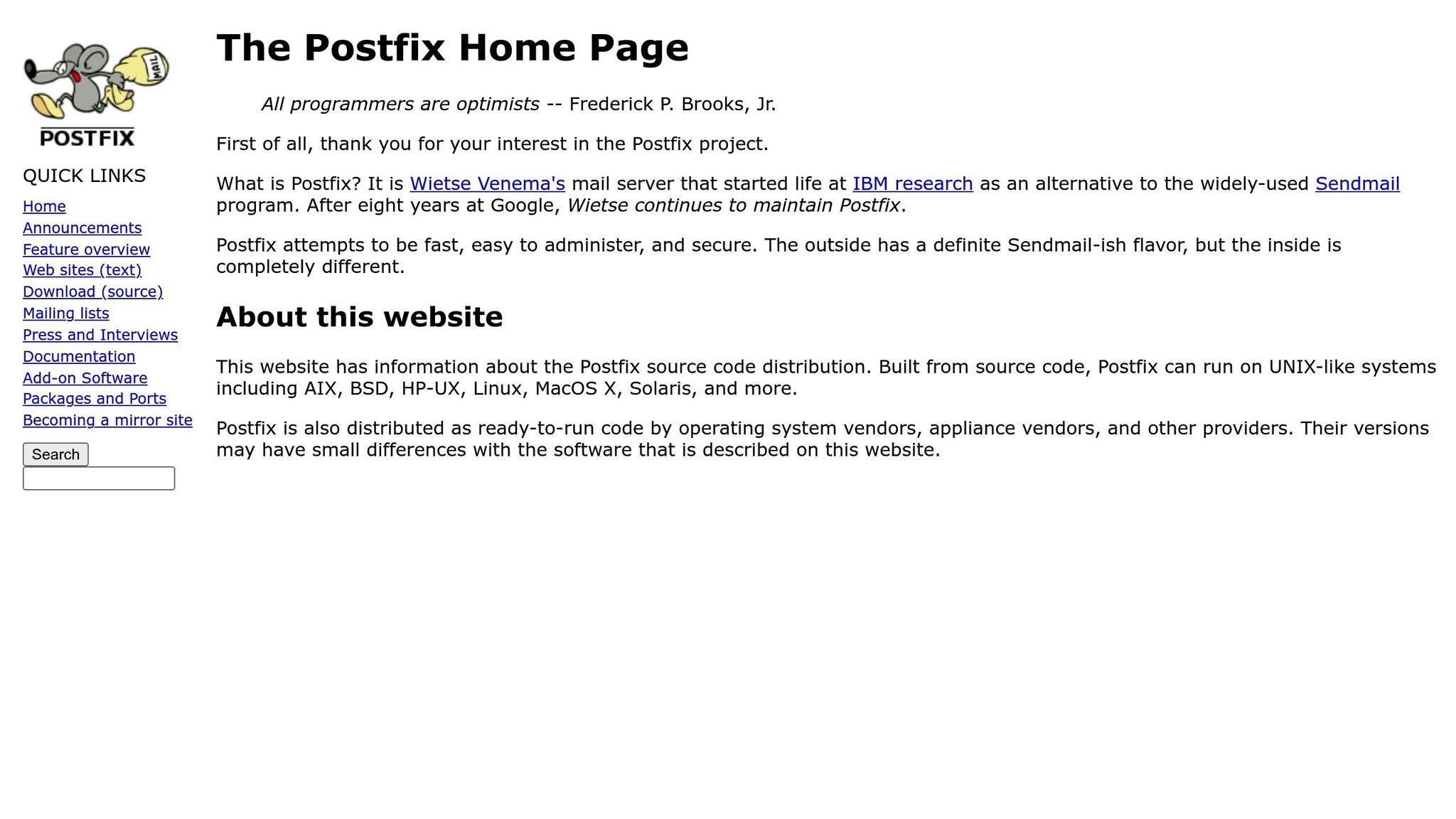
Before diving into the setup process, let’s break down what these components do:
- Postfix: An open-source Mail Transfer Agent (MTA) designed to send, receive, and route emails. Known for its security, modular architecture, and ease of configuration, Postfix is widely used in both small and large-scale environments.
- Dovecot: A high-performance Mail Delivery Agent (MDA) that supports IMAP and POP3 protocols. It focuses on user authentication and securely storing emails in mailboxes. Its built-in TLS encryption ensures that data exchanged with email clients, such as Mozilla Thunderbird, remains secure.
sbb-itb-59e1987
Why Use Postfix and Dovecot for Your Mail Server?
For many IT professionals, an in-house email server offers enhanced control over data, better security, and customization for specific business needs. Here’s why combining Postfix and Dovecot is an excellent choice:
- Data Security: Both tools feature robust encryption capabilities, including TLS and Diffie-Hellman parameter settings for secure communication.
- Flexibility: Advanced mailbox formats, authentication backends, and modular configurations offer tailored solutions.
- Performance: Postfix handles high email throughput, and Dovecot’s high-speed mailbox operations ensure smooth performance for users.
- Compatibility: Dovecot supports standard email clients such as Thunderbird, enabling seamless integration with user workflows.
Step-by-Step Guide: Setting Up a Secure Mail Server
This section outlines the nine main steps to set up a local mail server using Postfix and Dovecot. The guide is based on a test environment using Fedora 41 as the virtual machine.
1. Install and Configure Dovecot
Dovecot acts as the backbone of your mail delivery system. Follow these steps to install and configure it:
- Install Dovecot: Run the command to install Dovecot on your server.
sudo yum install dovecot - Generate Certificates: Use a tool like SSCG (Simple Signed Certificate Generator) to create self-signed TLS certificates. These certificates are essential for encrypting email communication.
- Enable TLS Encryption: Update the Dovecot configuration file (
/etc/dovecot/conf.d/10-ssl.conf) with the paths to your private key, public certificate, and CA certificate. Example:ssl_cert = </etc/dovecot/ssl/cert.pem ssl_key = </etc/dovecot/ssl/key.pem ssl_dh = </etc/dovecot/ssl/dh.pem - Set Up Mailbox Location: Specify the mailbox format and storage location. The recommended format is sdbox (Single Dovecot Box), where each email is stored as a separate file. Update the
10-mail.conffile:mail_location = sdbox:/var/mail/%n
2. Set Up Authentication
Dovecot supports various authentication backends, including local files, PAM, LDAP, or SQL. For simplicity, this example uses PAM-based authentication:
- Edit the
/etc/dovecot/conf.d/auth-system.conf.extfile to configure user authentication via PAM. - Ensure that domain names are stripped during authentication. Modify the
auth_username_formatin10-auth.conf:auth_username_format = %Ln
3. Configure the LMTP Protocol
The Local Mail Transfer Protocol (LMTP) ensures seamless communication between Postfix and Dovecot for local message delivery.
- Confirm that the LMTP listener is enabled in
/etc/dovecot/conf.d/10-master.conf. Update the permissions for the LMTP socket to allow Postfix access:unix_listener /var/run/dovecot/lmtp { mode = 0600 user = postfix }
4. Install and Configure Postfix
Postfix is the SMTP service responsible for sending and routing emails. Here’s how to set it up:
- Install Postfix:
sudo yum install postfix - Basic Configuration: Update the main configuration file (
/etc/postfix/main.cf) with these core parameters:inet_interfaces = localhostmydestination = localhost.localdomainmailbox_transport = lmtp:unix:/var/run/dovecot/lmtp
- TLS Support: Ensure that Postfix uses the same TLS certificates generated earlier. Update the following parameters in
main.cf:smtpd_tls_cert_file=/etc/dovecot/ssl/cert.pem smtpd_tls_key_file=/etc/dovecot/ssl/key.pem - Start the Service: Enable and start the Postfix service:
sudo systemctl enable postfix sudo systemctl start postfix
5. Verify Inter-Service Communication
- Test the configuration by sending an email from the server using the
mailutility:echo "Test email body" | mail -s "Test Subject" admin@yourdomain.com - Monitor the log files (
/var/log/maillog) to ensure that Postfix successfully delivers the message to Dovecot via the LMTP socket.
6. Set Up Thunderbird as an Email Client
Finally, configure Mozilla Thunderbird to connect to your mail server:
- Use the email address and password for the corresponding Dovecot user.
- Set the incoming IMAP server to your mail server’s hostname.
- Use STARTTLS for encryption and the default IMAP/SMTP ports.
Once configured, Thunderbird should be able to send and receive emails using your newly configured server.
Key Takeaways
- Postfix and Dovecot Pairing: Postfix excels at handling email transmission, while Dovecot provides secure delivery and mailbox management.
- Enable TLS: Always configure TLS encryption to secure email communication.
- Authentication Matters: Proper authentication, like PAM or LDAP, ensures only authorized users access the server.
- Firewall Rules: For remote setups, configure your firewall to allow IMAP, POP3, and SMTP communication.
- Test Thoroughly: Verify configurations by sending test emails and checking log files.
- Flexible Mailbox Formats: Use formats like
sdboxfor high performance and organized email storage. - Use a Reliable Client: Email clients like Mozilla Thunderbird integrate seamlessly with IMAP and SMTP protocols.
Conclusion
Setting up a secure email server using Postfix and Dovecot may seem complex, but with proper guidance, it becomes a manageable task. This setup not only secures your email data but also provides the flexibility to customize your server to meet specific business needs. Whether you’re running mission-critical applications or managing a small business, having full control over your email infrastructure is both empowering and cost-effective.
By following this step-by-step guide, you’ve laid the foundation for a scalable, secure, and reliable email communication system. Happy hosting!
Source: "How to setup secure mail server using postfix and dovecot" – Middleware Technologies, YouTube, Sep 4, 2025 – https://www.youtube.com/watch?v=sLPsXa_fIQM
Use: Embedded for reference. Brief quotes used for commentary/review.