Azure Functions Alerting: Setup Guide

Want to ensure your Azure Functions run smoothly? Setting up proper alerting can help you identify and resolve issues quickly. Here’s what you’ll learn in this guide:
- Why alerting matters: Azure Functions operate in an event-driven, serverless environment, making it harder to detect performance issues like failures, latency spikes, or resource limits.
- What to monitor: Key metrics such as execution counts, HTTP errors (5xx), and resource usage. Use Application Insights for telemetry and Azure Monitor for alerts.
- How to set up alerts: Configure rules for critical issues, like function failures or abnormal resource usage, and set up action groups to notify the right people via email, SMS, or webhooks.
- Best practices: Use dynamic thresholds to reduce false alarms, review alert settings monthly, and test action groups to ensure notifications are effective.
Bottom line: Proactive alerting keeps your serverless apps reliable and your team prepared. Let’s dive into the details.
How to Set Up Azure Monitor Alerts and Action Groups for Azure Resources?
Prerequisites and Initial Setup
Before diving into alert configuration, make sure your Azure environment is ready, with all required permissions and Application Insights telemetry active.
What You Need Before Starting
To set up Azure Functions alerting, you’ll need a few essentials. First, ensure you have an active Azure subscription with the right permissions. Specifically, your account should have read access to the target resource (your Azure Function App) and write access to the resource group where you’ll create alert rules.
For permissions, the Monitoring Contributor role is ideal for creating and managing alerts, while the Monitoring Reader role works if you only need to view existing monitoring data. If neither fits your organization’s security model, you can define custom roles with more specific permissions.
Next, confirm that you have an operational Azure Function App. This app should already be generating telemetry data, which is crucial for setting up meaningful alerts. Regular traffic or scheduled executions are necessary to produce the telemetry data that supports effective monitoring.
Integration with Application Insights is also critical. Application Insights automatically gathers performance metrics, error logs, and execution details from your functions. Azure Monitor uses this telemetry to evaluate alert conditions and send notifications when needed.
Lastly, configure action groups to define how notifications will be sent (e.g., email, SMS, or webhooks). Without action groups, your alerts won’t notify the right people or systems when problems arise.
Before proceeding, double-check that your Application Insights setup is active and collecting data properly.
Checking Application Insights Integration
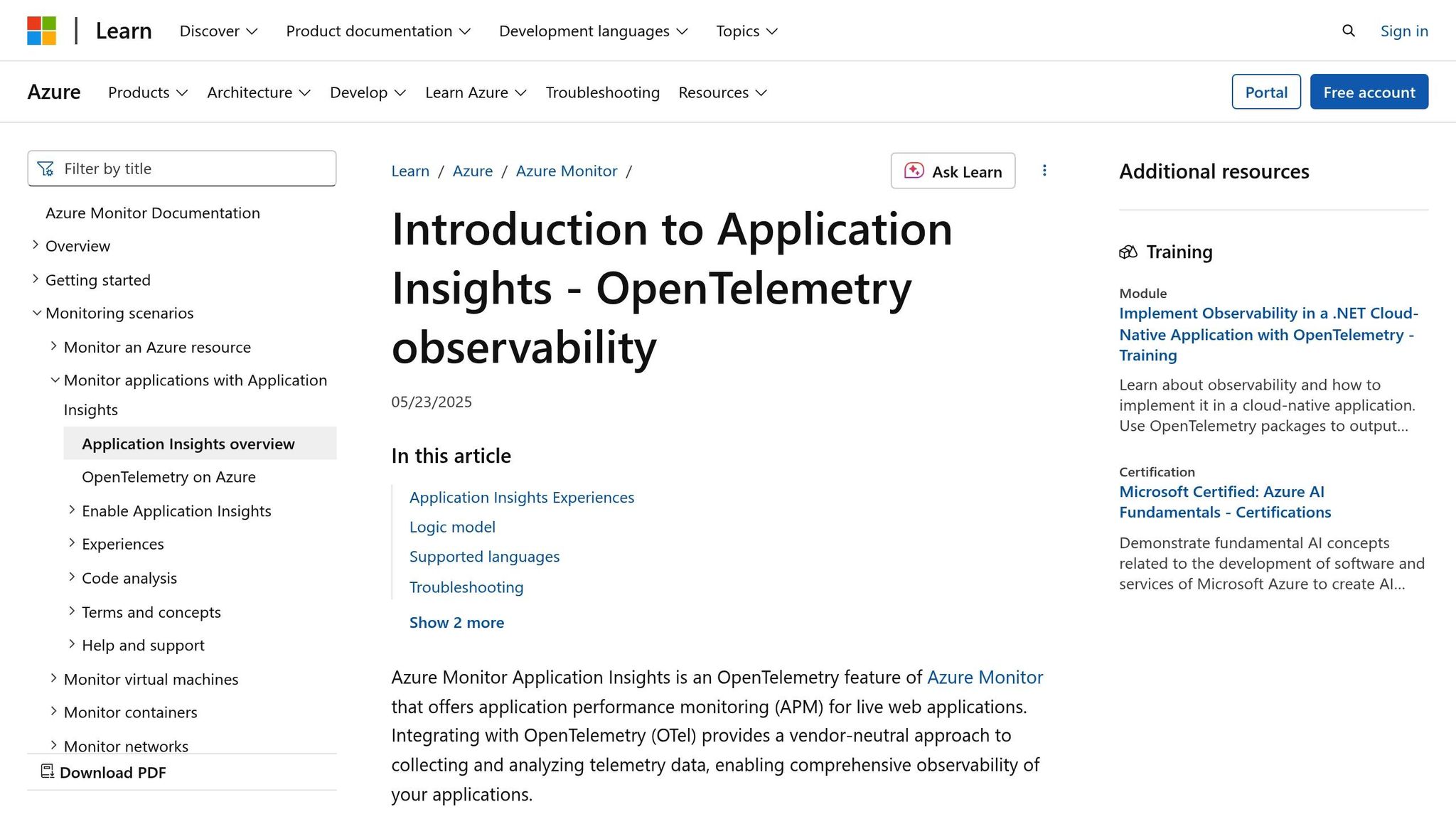
Accurate telemetry is the backbone of effective alerting. To ensure this, verify that Application Insights is correctly integrated with your Function App.
Start by navigating to your Function App in the Azure portal. If you see a banner reading "Application Insights is not configured", the integration hasn’t been set up yet.
To confirm integration, go to the Settings of your Function App and select Environment variables. Under the App settings tab, look for the APPLICATIONINSIGHTS_CONNECTION_STRING setting. This connection string is the modern way to link your Function App with Application Insights. If you only see APPINSIGHTS_INSTRUMENTATIONKEY, consider updating to the connection string format for improved reliability and security.
You can also verify integration using the Azure CLI. For example, to check a Function App named cc-main-function-app in the cloud-shell-storage-westeurope resource group, run the following command:
az functionapp config appsettings list --name cc-main-function-app --resource-group cloud-shell-storage-westeurope If the output doesn’t show APPLICATIONINSIGHTS_CONNECTION_STRING or APPINSIGHTS_INSTRUMENTATIONKEY, Application Insights isn’t enabled.
Once you’ve confirmed the connection string exists, test the integration by running your functions manually or waiting for scheduled triggers to execute. Then, check the Monitor tab in your Function App to see recent invocations, including execution details, duration, and success status.
For a deeper dive, visit your Application Insights resource. Use the Live Metrics, Failures, and Performance sections to confirm comprehensive telemetry is being collected. Additionally, you can use Application Insights Analytics to query data tables like traces, requests, and exceptions for further validation.
Keep in mind that alert data in Azure Monitor is retained for 30 days, so you’ll have ample time to review and refine your setup.
Setting Up Alerts in Azure Monitor
After setting up Application Insights, the next step is to create monitoring alerts in Azure Monitor to catch any potential issues with your Azure Functions. Azure Monitor works hand-in-hand with Application Insights, offering a solid framework for tracking platform metrics and custom logs. This gives you a clear view of your function’s performance and overall health.
Selecting Metrics and Logs to Monitor
Azure Monitor automatically gathers platform metrics from your Azure Functions without requiring additional setup. These metrics include execution counts, duration, memory usage, and HTTP response codes. To ensure your functions are running smoothly, focus on metrics that highlight reliability and performance concerns.
Key metrics to keep an eye on include HTTP errors and connection counts, as they provide instant feedback on whether your functions are accessible and functioning as expected. For instance, a sudden increase in HTTP 5xx errors could signal a coding problem or an issue with a downstream service that needs immediate attention.
To dive deeper into execution details, custom traces, and errors, route resource logs to Azure Monitor Logs using diagnostic settings. These logs are stored in the FunctionAppLogs table within your Log Analytics workspace, making it simple to query and analyze them.
Keep in mind that the aggregation period for metrics is typically 30 seconds or 1,000 runs. Application Insights also uses a sampling feature, limiting telemetry to 20 executions per second by default (or five in version 1.x). While this helps manage costs and performance, it may result in incomplete data during periods of high traffic.
When deciding what to monitor, prioritize issues requiring immediate action – like function failures, dependency errors, or timeouts. Also, consider tracking trends that signal long-term problems, such as increasing response times or higher memory usage.
Once you’ve identified the metrics and logs that matter most, you’re ready to set up alert rules.
Creating Alert Rules
After pinpointing the key metrics and logs, the next step is to configure alert rules to notify you of unusual behavior. Effective alert rules balance sensitivity with practicality, ensuring you’re alerted to critical issues without being overwhelmed by false alarms. Each alert rule in Azure Monitor consists of three main elements: the resource being monitored, the signal or data from that resource, and the conditions that trigger the alert.
To create an alert rule, go to Monitor > Alerts > Alert Rules in the Azure portal and click + New Alert Rule. Select your Function App as the target resource, then define the conditions that will trigger the alert.
For metric-based alerts, focus on high-priority scenarios. For example, HTTP server errors (HTTP 5xx) are crucial because they directly impact users. If your app typically has no 5xx errors, set an alert for any occurrence. If occasional errors are normal, you might set a threshold to trigger only when more than five errors occur within a five-minute window.
Log-based alerts, on the other hand, rely on Kusto queries to analyze data in your Log Analytics workspace. These are especially useful for identifying complex patterns that simple metrics might miss. For example, you can create alerts for scenarios such as a single user experiencing multiple failures in a short period or when error rates exceed normal levels for specific endpoints.
Here’s a quick table of common alert rules for Azure Functions:
| Alert Type | Condition | Description |
|---|---|---|
| Metric | Average connections | Triggered when connections exceed a set value |
| Metric | HTTP 404 | Triggered when HTTP 404 responses exceed a set value |
| Metric | HTTP Server Errors | Triggered when HTTP 5xx errors exceed a set value |
| Activity Log | Create or update function app | Alert when the app is created or updated |
| Activity Log | Delete function app | Alert when the app is deleted |
| Activity Log | Restart function app | Alert when the app is restarted |
| Activity Log | Stop function app | Alert when the app is stopped |
When setting thresholds, consider your app’s normal behavior. A function handling 1,000 requests per minute will have different baseline metrics compared to one processing just 10 requests per hour. Adjust thresholds to minimize false alerts while still catching critical issues.
Test your alert rules to ensure they work as expected. You can simulate conditions or wait for natural occurrences, but either way, confirm that notifications are delivered correctly before relying on them in production.
Keep in mind that Azure stores alerts for 30 days. If you need data for longer-term analysis, make sure to export or analyze it before it’s deleted.
Setting Up Action Groups
Action groups determine what happens when an alert is triggered. They define the notifications and automated actions that occur in response to an alert. You can assign up to five action groups to a single alert rule, and multiple alert rules can share the same action group.
To create an action group, go to Monitor > Alerts > Action Groups in the Azure portal and click + Create. Choose notification methods that align with your team’s communication style and escalation process. For less critical alerts, email notifications are often sufficient. For urgent issues, consider SMS or voice calls to ensure a faster response.
Email is the most common notification method, as it ensures timely updates to the right people. SMS and voice calls are better suited for after-hours issues or situations where team members may not be actively checking their email.
If you need to integrate alerts with external systems like ticketing tools or chat platforms, use webhook actions. For example, if you’re integrating with Microsoft Teams, you may need to use Logic Apps to format the alert data into the required schema. This approach allows for more sophisticated workflows, such as evaluating alert severity, checking business hours, escalating issues, or integrating with other tools.
When creating action groups, use clear and descriptive names. For instance, names like "Critical-Production-Alerts" or "Dev-Team-HTTP-Errors" make it easy to understand their purpose at a glance. Consider setting up separate action groups for different severity levels. For example, critical production issues might trigger SMS notifications for on-call engineers, while alerts for development environments might only send emails.
Test your action groups using Azure’s sample notification feature to ensure they’re configured correctly. This step is crucial to avoid surprises during an actual incident.
Finally, fine-tune your alerts and action groups to prevent alert fatigue. Too many notifications can lead to important alerts being ignored or disabled. Start with conservative thresholds and adjust them over time based on experience with false positives or missed alerts.
Review and update your alert rules and action groups regularly. As your application evolves, traffic patterns, new features, and team structures can all impact what needs monitoring and who should be notified. Keep your alerting strategy aligned with these changes to maintain its effectiveness.
sbb-itb-59e1987
Azure Functions Alerting Guidelines
Setting up effective alert rules goes beyond just enabling notifications. The goal is to catch critical issues without overwhelming your team with unnecessary alerts.
Creating Useful Alert Rules
The key to effective alerting is setting thresholds that truly reflect your application’s behavior. Generic thresholds often fall short because every Azure Function has its own traffic patterns, performance quirks, and business needs.
Start by analyzing a two-week baseline of your application’s performance. This historical data helps you distinguish between normal variations and real problems. From there, you can set thresholds that are both meaningful and actionable.
Dynamic thresholds are especially helpful. By adjusting based on historical data, they adapt to changes like seasonal traffic spikes, reducing the risk of false alarms. For example, instead of alerting on every fluctuation, you can set a rule to trigger only if five HTTP 404 errors occur within two minutes. Similarly, a brief spike in memory usage may not be a concern, but sustained high memory usage over five minutes could indicate a memory leak.
To avoid unnecessary noise, implement alert processing rules and watchlists. These tools can suppress alerts during planned maintenance or manage exceptions centrally. For instance, you could configure production-critical alerts to send SMS notifications during business hours, switch to emails overnight, and escalate to phone calls if the issue persists.
For more complex scenarios, Kusto Query Language (KQL) is a game-changer. With KQL, you can create precise log-based alerts that identify patterns like repeated failures from the same user session, cascading errors across functions, or unusual error spikes. This approach ensures that important issues are flagged while reducing false positives.
When naming alerts, clarity is crucial. Use names that immediately convey the system, environment, and issue type, like "Production-OrderProcessing-HighErrorRate" or "Dev-PaymentAPI-ConnectionFailures." Adding troubleshooting links or runbook references to alert descriptions can speed up resolution.
Finally, keep in mind that alert rules aren’t static. Regular updates are necessary to match your application’s evolving performance. The next section dives into how to keep these rules effective over time.
Updating and Reviewing Alert Settings
Once thresholds and conditions are set, regular reviews ensure they remain effective. A monthly review is a good starting point to fine-tune your alerting system.
During these reviews, analyze how often alerts were triggered and how they were handled. Frequent alerts that don’t lead to action may indicate thresholds that are too sensitive. On the other hand, missed issues could reveal gaps in your monitoring setup.
It’s also important to test your alert actions periodically. Team contacts and external systems change over time, so make sure notifications are still reaching the right people.
Keep an eye on changes to your resources that might impact alerts. Scaling your Function App, adding new functions, or modifying deployments can shift performance baselines. Update your thresholds as needed and consider whether new scenarios require additional alerts.
When functions are deprecated or modified, remove outdated alert rules promptly. Old alerts can clutter your system and distract from real issues. Maintaining clear documentation that maps alert rules to specific components can make this process much smoother.
Adjust alert criteria based on operational insights. For instance, if certain alerts frequently trigger during known scenarios like batch processing or deployments, tweak thresholds or add suppression rules to minimize false positives without losing sight of genuine problems.
Planned maintenance activities are another area where suppression rules can be helpful. Temporarily disabling specific alerts during maintenance prevents unnecessary notifications and ensures monitoring resumes automatically once the maintenance window ends.
Lastly, review your action groups regularly. Team responsibilities and on-call rotations evolve, so make sure the right people are notified for each issue type. You might even create separate action groups for different severity levels or application components to streamline escalation paths and improve response efficiency.
Conclusion
Setting up effective Azure Functions alerting requires a thoughtful balance between thorough monitoring and practical application. Beyond the initial setup, the key to success lies in understanding your application’s behavior and using historical data to establish meaningful baselines, rather than depending on one-size-fits-all thresholds.
Focus on monitoring critical metrics like connection counts, HTTP errors, and key activity log events. These metrics provide a solid foundation for tracking both performance and operational health, helping you catch potential issues before they escalate.
Regular reviews and updates are essential to keep your alerting system aligned with your application’s evolving needs. Monthly evaluations can help you fine-tune overly sensitive thresholds that generate unnecessary noise and identify any blind spots that might let problems slip by unnoticed.
Leverage dynamic thresholds to reduce false positives and adapt to historical trends. This approach removes the guesswork of static thresholds while ensuring the system remains sensitive to real anomalies.
To manage costs, minimize alert frequency for log searches and carefully select which resources to monitor without compromising coverage. Remember, Azure stores alert data for 30 days, so make it a habit to document and review your settings regularly.
Testing your action groups is equally important. Ensure notifications reach the right people and that escalation procedures work smoothly when genuine issues arise.
A well-maintained alerting system transforms your approach from reactive problem-solving to proactive prevention. This not only ensures consistent performance but also lightens the operational workload for your development and operations teams.
FAQs
How can I reduce false alarms in my Azure Functions alerting system?
To minimize false alarms in your Azure Functions alerting system, it’s essential to focus on setting up precise and meaningful alert conditions. Instead of triggering alerts for every single failure, consider defining thresholds based on metrics that truly represent your application’s health – like tracking failure rates over a period of time. This way, you can filter out minor or temporary glitches that don’t require immediate attention.
Another useful strategy is leveraging dynamic thresholds in Azure Monitor. These thresholds adjust automatically based on historical data and typical usage patterns, making it easier to differentiate between normal fluctuations and actual issues.
You can also implement alert processing rules to refine your notifications. For example, suppress alerts during scheduled maintenance windows or group similar alerts together. These steps ensure that you’re only notified about critical updates, helping you maintain a reliable alerting system without unnecessary disruptions.
What are the advantages of using dynamic thresholds for Azure Functions alerts, and how do they compare to static thresholds?
Dynamic thresholds for Azure Functions alerts bring a new level of flexibility and precision. Instead of relying on fixed values, they use machine learning to analyze historical data and performance trends. This allows them to automatically adjust to changes, spotting anomalies more effectively while keeping false alarms to a minimum. For environments with fluctuating workloads, this approach ensures that alerts stay relevant and actionable.
On the other hand, static thresholds depend on predefined values that need to be manually set and updated. This can result in either missed issues or an overwhelming number of alerts when performance shifts over time. By removing the need for constant manual adjustments, dynamic thresholds provide a smarter and more reliable way to manage Azure Functions alerts.
How can I set up Azure Functions alerts to send notifications to Microsoft Teams or other platforms?
To send Azure Functions alerts to Microsoft Teams or other platforms, you can use Incoming Webhooks. Here’s how to set it up:
First, create an Incoming Webhook in your Teams channel. Navigate to the Apps tab, select the Incoming Webhook connector, and follow the prompts to generate a unique webhook URL for your channel.
Once that’s ready, configure your Azure Function to send alerts by making HTTP POST requests to the webhook URL. Inside your Azure Function, write code to monitor specific events or conditions, format the alert message as a JSON payload, and send it to the webhook. This setup enables real-time notifications, keeping your team updated and ready to act on critical events.